How to create a newsletter signup form in MailEach
A signup form is how visitors on your site become subscribers. MailEach builds the form for you — you just configure the design and fields, then embed a small snippet anywhere. This guide covers the…
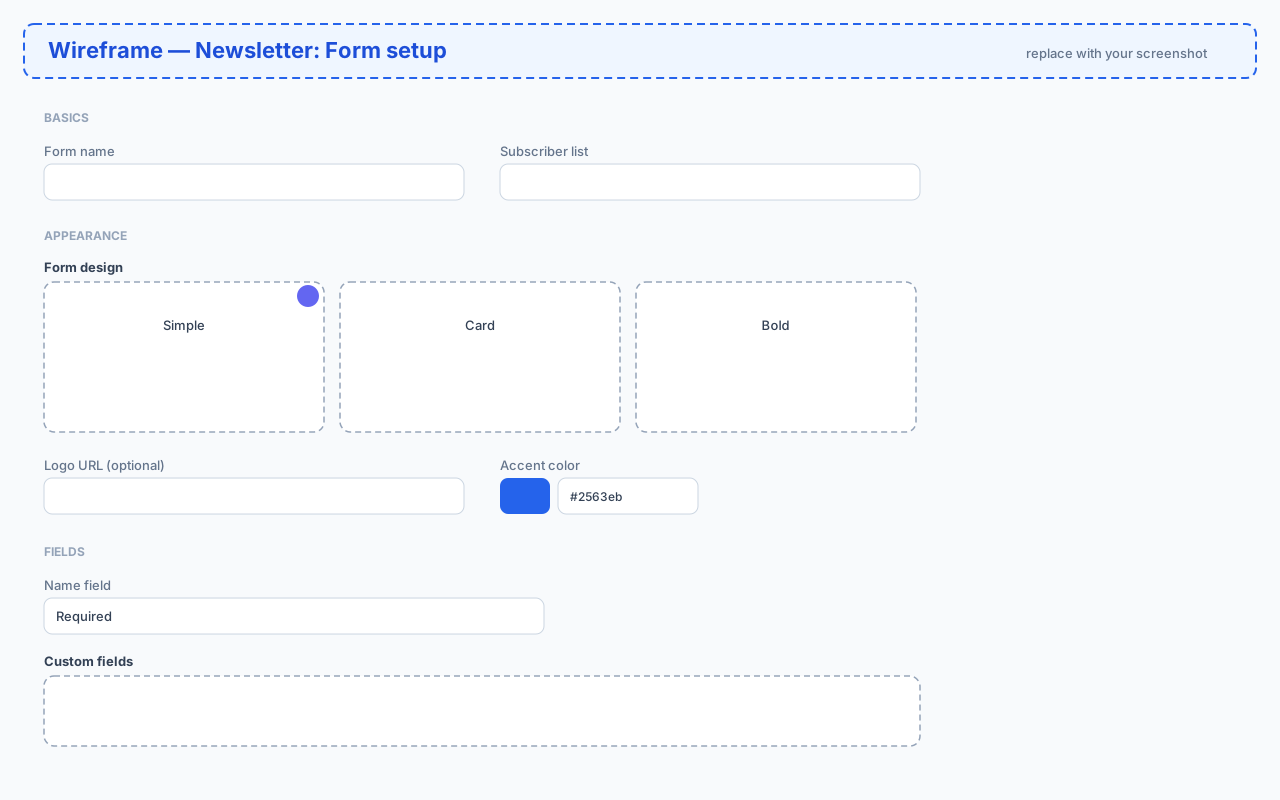
A signup form is how visitors on your site become subscribers. MailEach builds the form for you — you just configure the design and fields, then embed a small snippet anywhere. This guide covers the first step of the form builder: Form setup.
What you'll create
By the end of this guide you'll have a working form with a name, a destination list, a design, your branding, and the fields you want to collect. The opt-in flow and the welcome emails are configured in the next two steps, covered in their own guides.
Step 1: name the form and pick a list
Open Newsletter → New form. Give the form a name you'll recognise (it's internal — visitors never see it), then choose the subscriber list where new signups should land. If you don't have a list yet, create one from Leads → Lists first.
Step 2: choose a design
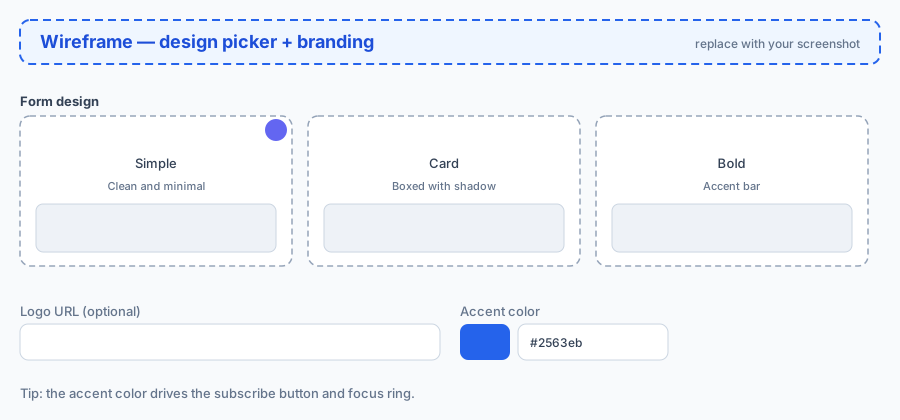
MailEach offers three form designs, and you can switch at any time:
- Simple — clean and minimal, nothing but the fields and button.
- Card — the same form boxed with a soft shadow, so it stands off the page.
- Bold — a high-contrast header bar above the fields.
Pick the one that best fits the page you'll embed it on. There's no wrong answer — you can preview and change it later.
Step 3: brand the form
Two fields make the form feel like yours. The Logo URL shows your logo at the top of the form (host it anywhere — your site or a CDN). The Accent color drives the subscribe button and focus ring, so it should match your brand palette.
Step 4: configure the fields
Name field
Choose whether the form asks for the visitor's name: Required, Optional, or Hidden (email only). Asking for a name slightly lowers conversion; collecting it lets you personalize every email with {{name}}.
Custom fields
Add up to five extra fields (for example "Phone" or "Company"). Each one appears on the signup form and is stored on the subscriber, and you can use it later in your sequences as a merge tag like {{phone}}.
Saving your form
Click Save form — or continue with Next step to configure the signup flow (double opt-in, consent, reCAPTCHA) and the welcome email before saving. All steps are saved together, so you can move freely.
Frequently asked questions
Do I need a logo on my form?
No. The logo is optional — a form without one still works perfectly. But adding it makes the form feel native to your site and reassures visitors.
Can I change the design after publishing?
Yes. Edit the form, switch designs, and save — every site that embeds it updates automatically.
Where do the new subscribers go?
Into the subscriber list you selected. They appear in Leads like any other recipient, ready for your campaigns and sequences.
Next steps
Now configure the signup flow in our double opt-in guide, then learn how to embed the form on your website.