How to manage running campaigns in MailEach (pause, resume, stop)
Once a campaign is live, things change — lists grow, copy gets revised, priorities shift. The Manage campaigns screen is where you keep every campaign under control. This guide explains the list, the…
Once a campaign is live, things change — lists grow, copy gets revised, priorities shift. The Manage campaigns screen is where you keep every campaign under control. This guide explains the list, the actions menu, and what each status means.
The campaign list
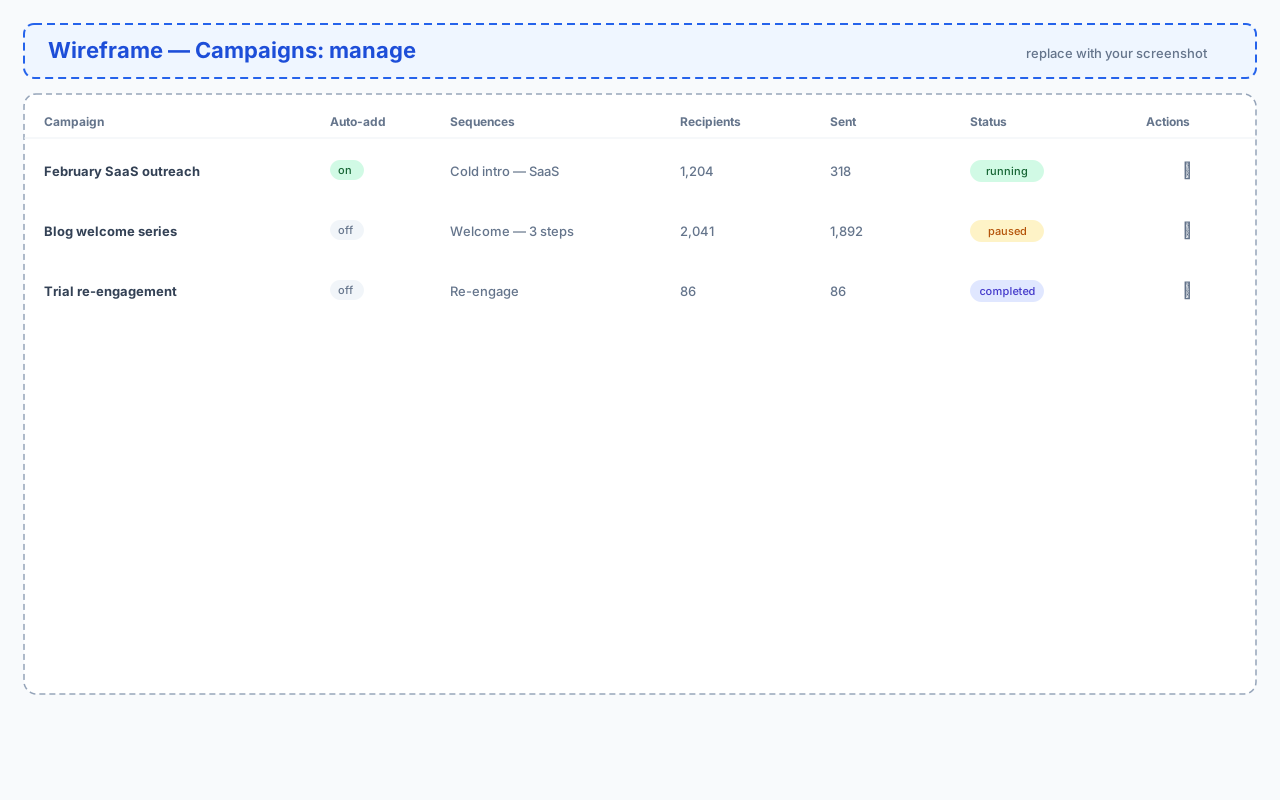
Open Campaigns → Manage campaigns to see every campaign you've created. Each row shows:
- Campaign — its name.
- Auto-add — whether new leads in its list are queued automatically (on/off).
- Sequences — the sequence(s) attached to it.
- Recipients — how many leads are in its list.
- Sent — how many emails have gone out so far.
- Status — its current state (running, paused, completed…).
Pausing a campaign
Pausing stops further sends immediately while keeping everything intact. It's the right move when you want a temporary break — for example while you review replies or fix copy. A paused campaign can be resumed at any time, right where it left off.
Resuming a campaign
Resuming continues sending to the remaining recipients in the list. The emails that were already sent are never repeated; MailEach simply picks up with whoever hasn't received the next step yet.
Stopping a campaign
Stopping ends the campaign permanently — it won't send anything further. Use it when the outreach is finished or no longer relevant. Unlike pausing, a stopped campaign can't be restarted.
Marking a campaign completed
When every recipient has received all their steps, mark the campaign completed to close it cleanly. Completed campaigns stay in the list for reference and analytics but no longer send.
Working with the actions menu
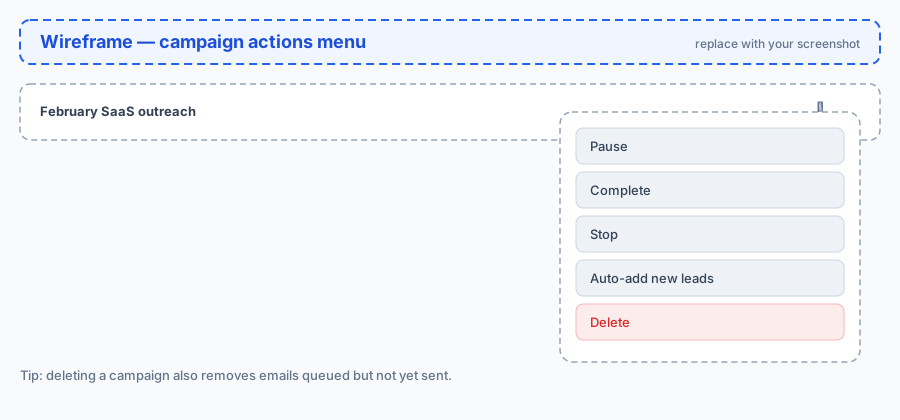
Every action lives in the ⋯ menu on the right of each row. The options change depending on the current status — a running campaign shows Pause, a paused one shows Resume, and so on.
Toggling auto-add for new leads
The Auto-add option controls whether a running campaign emails leads that are added to its list after launch. Turn it on when a signup form keeps feeding the list; turn it off when you only want the original audience.
Deleting a campaign
Deleting removes the campaign and its queued emails (messages that were waiting to be sent). Sent emails and their analytics remain in your history. This action can't be undone, so double-check before you confirm.
Understanding campaign statuses
- Draft — saved but never started. You can schedule or launch it.
- Scheduled — set to start at a specific date and time.
- Running — actively sending right now.
- Paused — temporarily stopped; can be resumed.
- Completed — finished sending to every recipient.
- Stopped — ended manually; cannot be restarted.
Frequently asked questions
What happens to queued emails when I pause?
They stay in the queue untouched. When you resume, sending continues from where it stopped — nothing is lost or duplicated.
Can I edit a running campaign?
You can pause or stop it, and toggle auto-add. To change its list or sequences, stop it and create a new campaign with the corrected setup.
Does deleting a campaign delete the list or sequences?
No. Only the campaign and its queued emails are removed — your lists and sequences remain available for other campaigns.
Next steps
With your campaigns under control, learn how to read the results in our Analytics guides, and keep your sender reputation healthy with the SMTP guides.