How to manage your newsletter subscribers in MailEach
Every person who signs up through your forms lands in your subscriber list. The Subscribers view in Newsletter is where you can see them all, filter them, and understand their state — this guide…
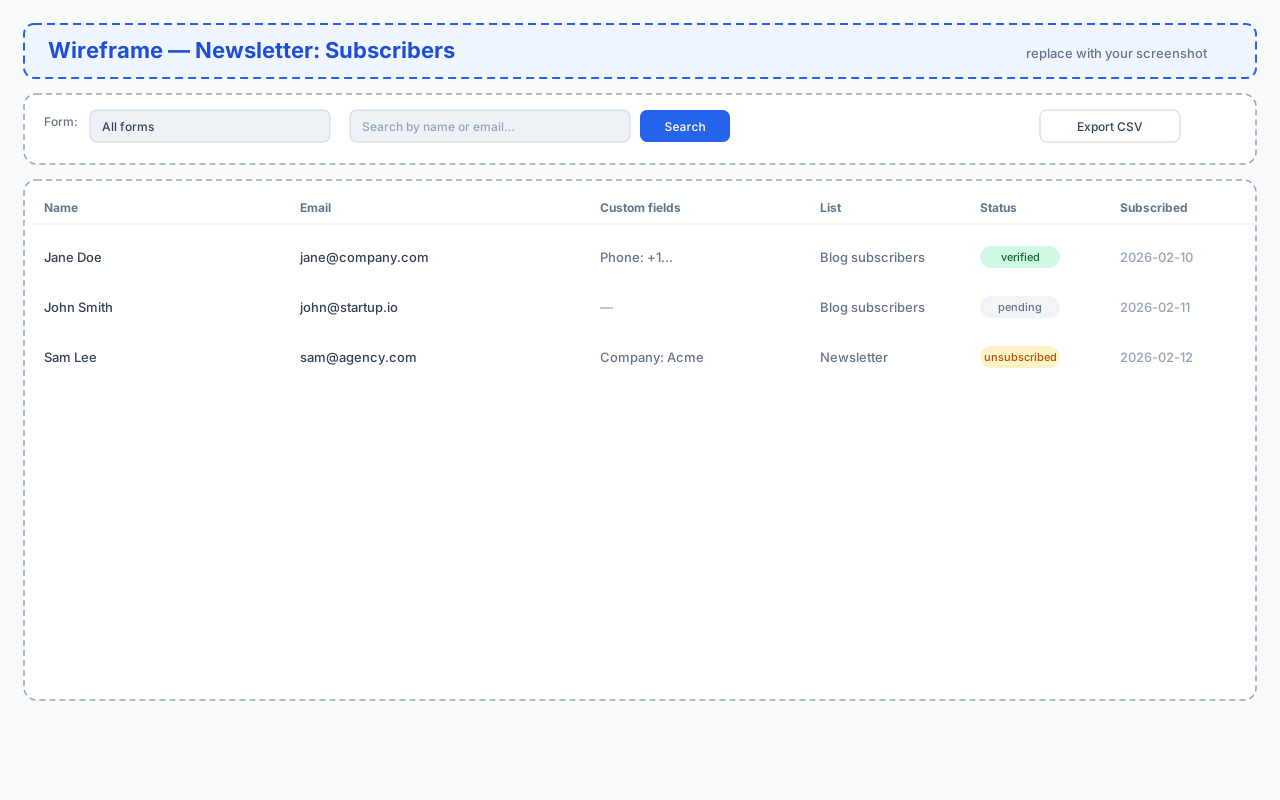
Every person who signs up through your forms lands in your subscriber list. The Subscribers view in Newsletter is where you can see them all, filter them, and understand their state — this guide walks through the whole screen.
Where subscribers live
Subscribers are ordinary recipients stored in the list each form targets. That means you can see them in two places: the Newsletter → Subscribers view (focused on forms), and Leads (full recipient management). Anything you do in one place shows up in the other.
Filtering and searching subscribers
The toolbar lets you narrow the list by form — useful when several forms feed different lists — and search by name or email. Click Clear to reset the filters back to everyone.
Reading the subscriber table
Each row shows:
- Name — as entered on the form (may be blank for email-only forms).
- Email — the address they signed up with.
- Custom fields — any extra data you collect, like phone or company.
- List — the list this subscriber belongs to.
- Status — their current state (see below).
- Subscribed — the date they signed up.
Understanding subscriber statuses
The status pill next to each subscriber tells you how healthy that address is:
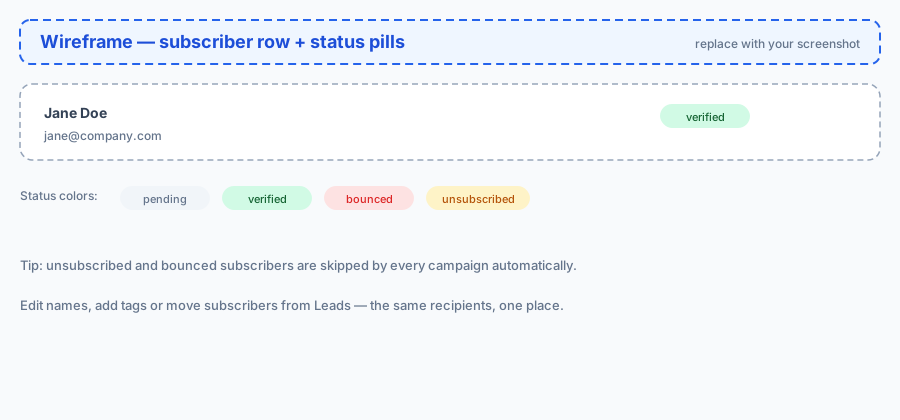
- Pending — not yet verified.
- Verified — a good, confirmed address.
- Bounced — emails to this address failed.
- Unsubscribed — they opted out; MailEach never emails them again.
Bounced and unsubscribed subscribers are skipped automatically by every campaign, so they never hurt your sender reputation.
Exporting subscribers
The Export CSV button downloads the currently filtered subscribers as a spreadsheet. It's handy for backups, analysis, or moving your audience to another tool.
Managing subscribers in Leads
For day-to-day management, open the same people in Leads — there you can edit names, add and rename tags, move subscribers between lists, and apply bulk actions to many at once. Our managing recipients guide covers every tool.
Keeping your list healthy
- Let double opt-in filter fake addresses at the door.
- Review bounced and unsubscribed counts now and then; a rising bounce rate usually means stale data.
- Segment engaged subscribers with tags instead of blasting the whole list.
Frequently asked questions
Can I delete a subscriber from this screen?
Subscriber management lives in Leads — open the subscriber there to move, tag or remove them.
Do unsubscribed people count towards my lead limit?
They remain in your workspace (marked unsubscribed) but are never contacted again, so they never waste sends.
What happens when I delete a form?
New signups stop, but the subscribers already collected stay in their list.
Next steps
Now that your list is healthy, keep your sending reputation in shape with our SMTP guides.