Double opt-in, welcome and confirmation emails in MailEach
Getting the email address is only half the job. The Signup flow and Emails steps of the form builder control how a visitor becomes a subscriber — whether they must confirm first, what email welcomes…
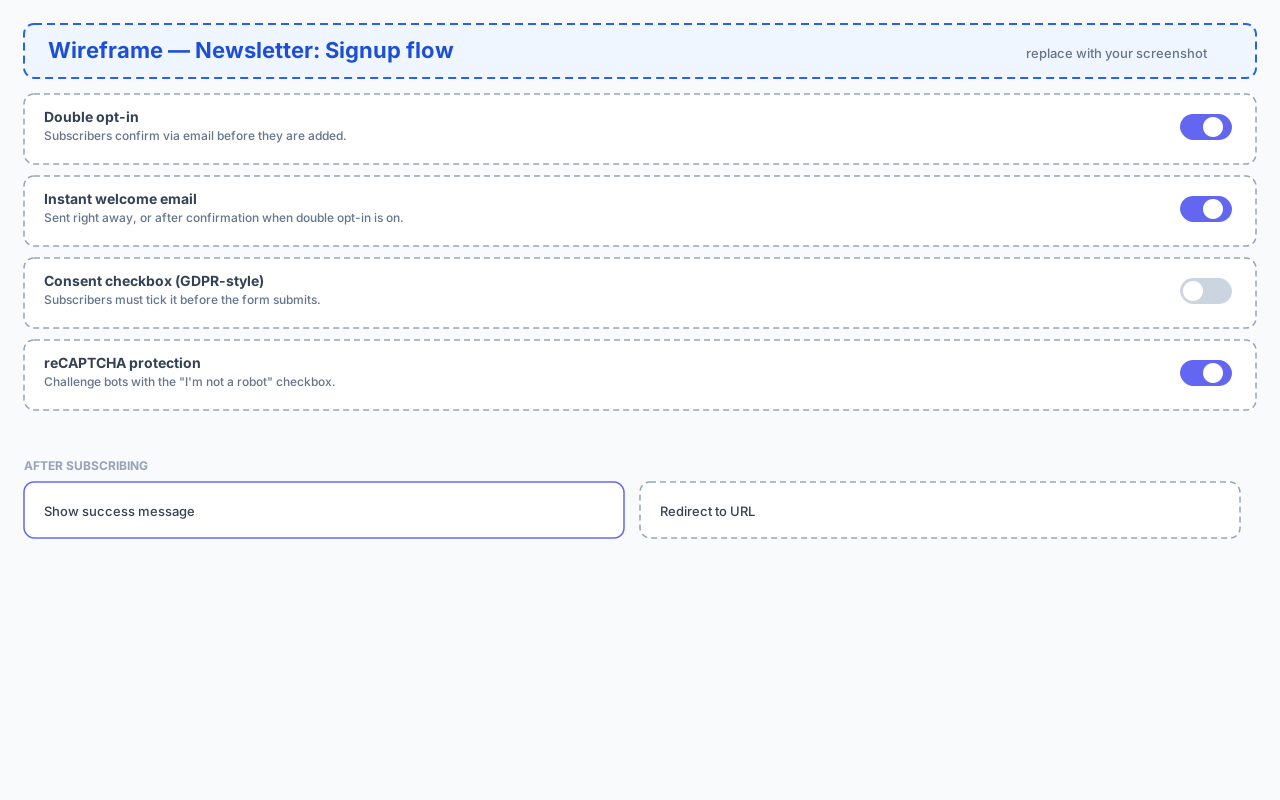
Getting the email address is only half the job. The Signup flow and Emails steps of the form builder control how a visitor becomes a subscriber — whether they must confirm first, what email welcomes them, and how the form protects itself against bots. This guide covers every setting.
What is double opt-in?
With double opt-in on, a new signup first receives a confirmation email with a verification link. The subscriber is added to your list only after clicking it. With it off (single opt-in), they're added the moment they submit the form.
Double opt-in is the gold standard for list quality: it blocks fake and mistyped addresses, keeps your list clean, and protects your sender reputation. The trade-off is one extra step for the subscriber.
Enabling double opt-in
Turn the Double opt-in toggle on in the Signup flow step. Note that confirmation links are always sent from your own domain, so MailEach requires an active tracking subdomain first — if you haven't connected one yet, the toggle will point you to the Tracking page.
The welcome email
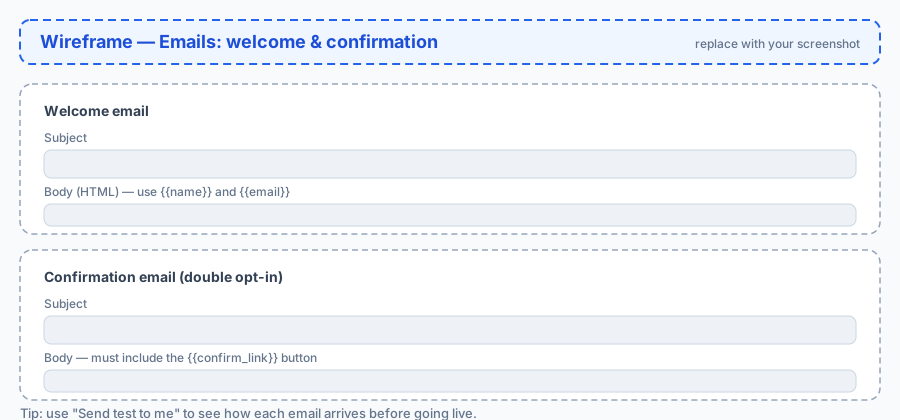
The welcome email is your greeting. It's sent right away — or immediately after confirmation when double opt-in is on. Write the Subject and the Body (full HTML supported), and personalize it with merge tags like {{name}} and {{email}}. Keep it short: a warm hello, what to expect, and where the good stuff is.
The confirmation email
This is the double opt-in email. Its body must contain the {{confirm_link}} tag — that's the verification link subscribers click to confirm. Everything else is up to you: a short subject and a clear call to action work best. If the link is missing, subscribers can't confirm and won't be added.
GDPR consent checkbox
Enable the Consent checkbox to add a GDPR-style tick box to your form, with your own wording (for example "I agree to receive emails and to the processing of my data"). The form won't submit until it's ticked, and the consent timestamp is stored with each subscriber — your proof of consent if it's ever needed.
reCAPTCHA protection
Turn on reCAPTCHA to challenge bots with the "I'm not a robot" checkbox before the form submits. Combined with MailEach's built-in rate limiting and honeypot, it keeps junk signups out of your list. You can disable it for forms that expect automated or very high-volume signups.
What happens after signup
Choose what visitors see after submitting:
- Show success message — a confirmation line like "Thanks for subscribing!".
- Redirect to URL — send them to a thank-you or download page on your own site.
There's also an optional confirmation redirect URL: after a subscriber clicks the double opt-in link, they land there instead — perfect for delivering lead magnets.
Sending test emails and previews
Before going live, use Send test to me on the welcome and confirmation emails to receive a real copy in your inbox, and Preview to see them rendered instantly. Always test the confirmation email in particular — a broken link means lost subscribers.
Requirements checklist
- Active SMTP sender — welcome and confirmation emails are sent through your own SMTP, so they come from your domain. Without one, the toggles are blocked.
- Active tracking subdomain — required for double opt-in, so confirmation links are fully branded.
Frequently asked questions
Can I use both welcome and confirmation emails?
Yes — that's the recommended flow. The confirmation email verifies the address, then the welcome email greets the confirmed subscriber.
What happens to unconfirmed signups?
They stay out of your list. Only subscribers who click the confirmation link are added.
Why are the toggles blocked?
Welcome/confirmation emails need an active SMTP sender, and double opt-in needs an active tracking subdomain. Connect both and the toggles unlock.
Next steps
With the flow configured, learn how to embed the form on your website so visitors can start subscribing.