How to embed your newsletter signup form on your website
Your signup form is only useful once it's live on your site. MailEach gives you a tiny snippet to paste into any page — no plugins, no hosting needed. This guide shows how to get the code, where to…
Your signup form is only useful once it's live on your site. MailEach gives you a tiny snippet to paste into any page — no plugins, no hosting needed. This guide shows how to get the code, where to put it, and how to check it works.
Getting the embed code
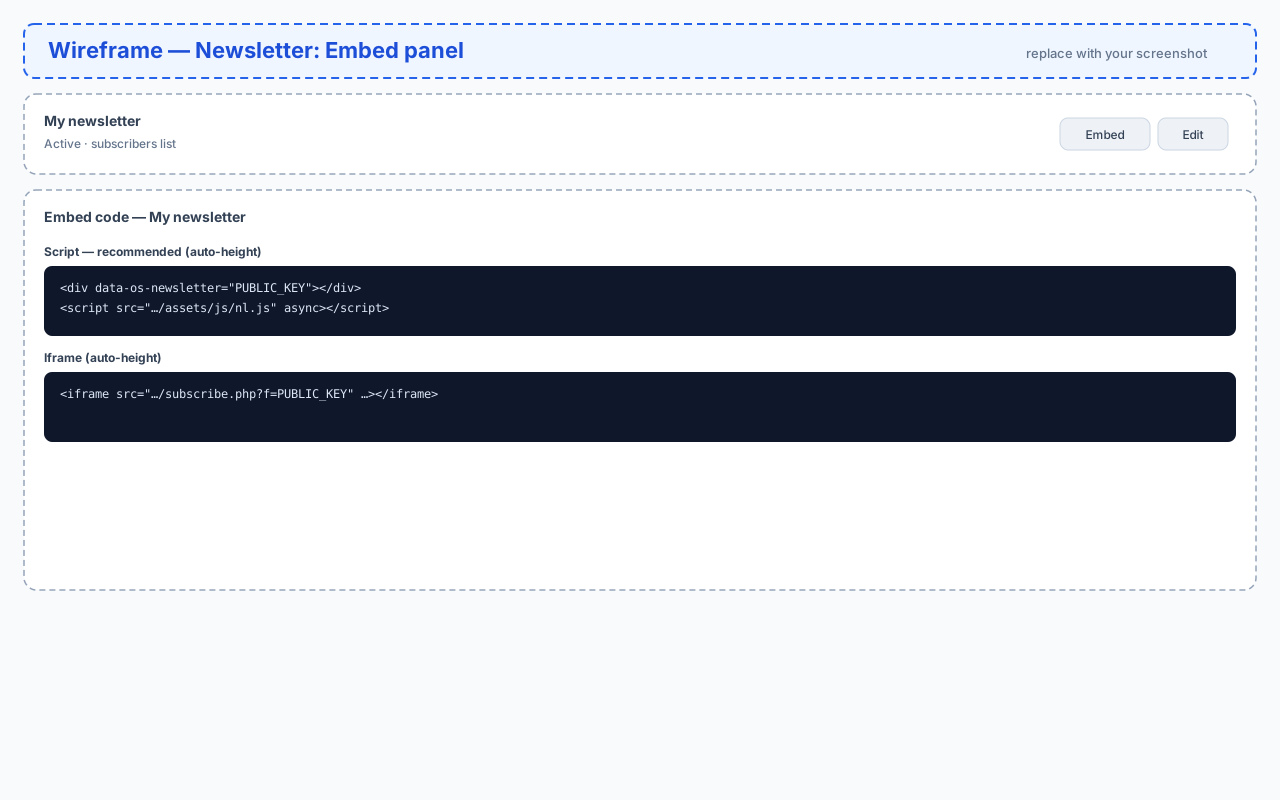
Open Newsletter, find your form's card, and click its Embed button. A panel opens with two ready-to-copy snippets: the recommended script snippet and an iframe fallback.
Method 1: the script snippet (recommended)
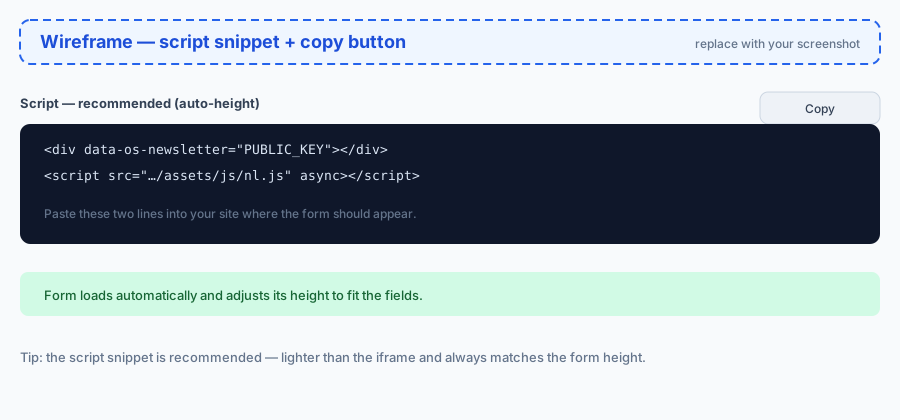
The script snippet is two lines: a placeholder div and a small script that renders the form inside it.
<div data-os-newsletter="YOUR_PUBLIC_KEY"></div>
<script src="https://app.maileach.com/assets/js/nl.js" async></script>
Paste both lines wherever the form should appear. The form loads automatically and always adjusts its height to fit the fields — even when you change the form design later, your site updates with no further edits.
Method 2: the iframe
If your site builder blocks third-party scripts, use the iframe instead. It loads the form in its own frame with the same auto-height behavior.
<iframe id="os-nl-YOUR_PUBLIC_KEY"
  src="https://app.maileach.com/subscribe.php?f=YOUR_PUBLIC_KEY"
  style="width:100%;max-width:480px;height:360px;border:0;overflow:hidden;"
  loading="lazy"></iframe>
<script>
(function(){
  var f = document.getElementById('os-nl-YOUR_PUBLIC_KEY');
  if (!f) return;
  window.addEventListener('message', function(e){
    var d = e.data;
    if (!d || d.type !== 'nl:height' || typeof d.h !== 'number') return;
    if (e.source === f.contentWindow) f.style.height = Math.max(120, Math.ceil(d.h)) + 'px';
  });
})();
</script>
Choosing between script and iframe
- Use the script snippet when you can — it's lighter, faster, and matches your page's styling context better.
- Use the iframe on platforms that strip or block JavaScript snippets, or when you want the form completely isolated from your page's CSS.
Where to place the form
The form works anywhere: a blog sidebar, the footer of every page, a dedicated subscribe page, or a landing page. High-intent spots — right after a valuable article, or on your pricing/about pages — tend to convert best. If you run several audiences, embed different forms in different sections.
Testing the embedded form
After pasting the snippet, open the page and submit a test signup yourself. Watch for three things: the form renders with your design, the success message (or redirect) fires, and — with double opt-in on — the confirmation email arrives with a working link. Testing once beats finding out later that signups were silently failing.
Common issues and fixes
- Form doesn't appear — check that both lines of the snippet are pasted and that your site didn't strip the script tag.
- Wrong height or clipped fields — the snippet is auto-height; if you copied the iframe, make sure its resize script was included too.
- Design changes not showing — hard-refresh the page; the form pulls the latest design automatically.
Frequently asked questions
Does the form need my site to run PHP?
No. Both snippets are plain HTML and JavaScript — they work on any static site, blog platform or builder that allows scripts.
Can I embed the same form on several pages?
Yes. The same snippet works on as many pages as you like; every copy submits to the same list.
What happens to the old snippet when I edit the form?
Nothing to change. The snippet stays the same — the form content and design update automatically.
Next steps
Once the form is collecting subscribers, learn how to manage them and keep your list healthy.