How to create and launch a campaign in MailEach
A campaign is where everything you've built comes together: it picks a recipient list , attaches one or more sequences , and starts sending through your connected SMTP accounts. This guide walks…
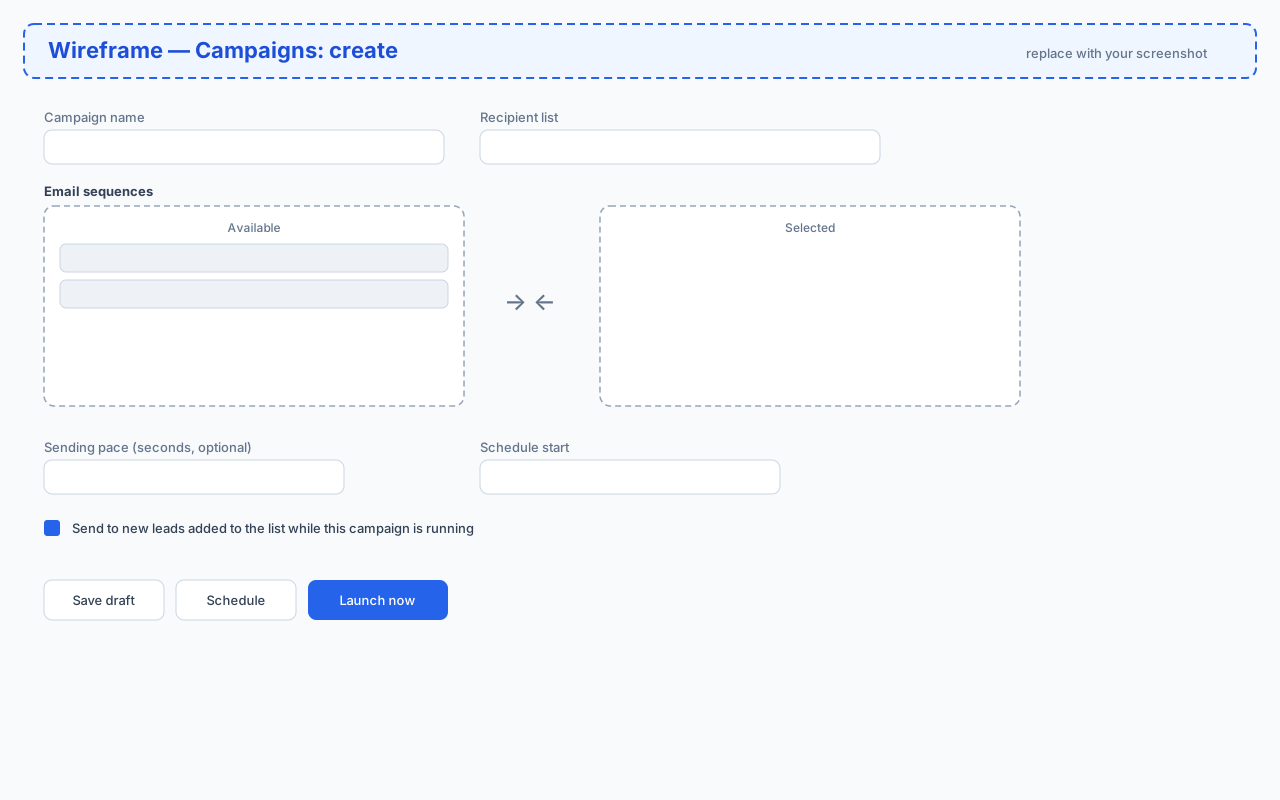
A campaign is where everything you've built comes together: it picks a recipient list, attaches one or more sequences, and starts sending through your connected SMTP accounts. This guide walks through each field on the campaign screen so you can launch with confidence.
What is a campaign?
A campaign answers three questions at once: who should receive the emails, which messages should they get, and how fast should they go out. Once it's running, MailEach works through the list automatically, sending each recipient their assigned sequence and stopping the moment they reply.
Before you start
You'll need two things ready: at least one list with recipients in it, and at least one sequence to send. If you don't have these yet, our Leads and Sequences guides cover both.
Step 1: name your campaign
Give the campaign a clear name you'll recognise later — for example "February SaaS outreach" or "Blog welcome series". The name appears in your campaign list and analytics, so make it specific.
Step 2: choose a recipient list
Select the list this campaign should send to. Every lead in that list with an eligible status is a potential recipient. If you want to target a subset, create a dedicated list first rather than trying to filter inside the campaign.
Step 3: select your sequences
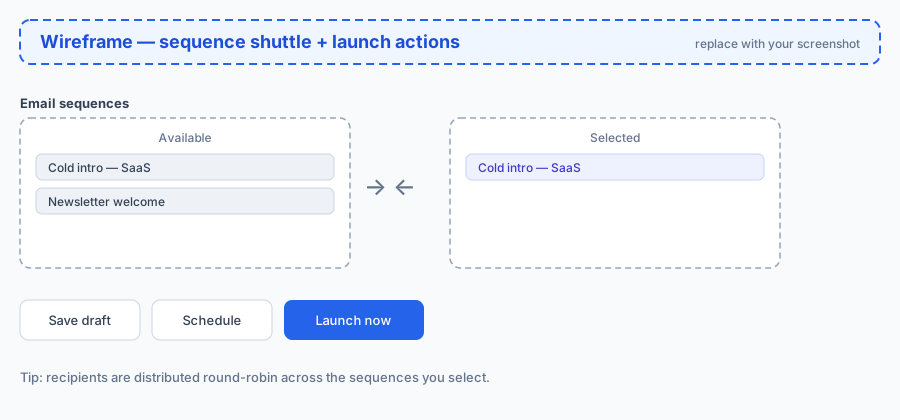
Use the two-column picker to move sequences from Available to Selected — click a sequence and use the arrows, or double-click it.
You can attach more than one sequence to a campaign. When you do, recipients are distributed round-robin: the first lead gets sequence A, the second gets sequence B, and so on. Each recipient's follow-ups stay inside the sequence they were assigned.
Step 4: set the sending pace
The sending pace is how many seconds MailEach waits between emails. It keeps your sending steady and protects your deliverability. Leave it empty to use your workspace default, or set a per-campaign override. The platform enforces a minimum pace (so you can't blast), and you can space sends out to as much as one email per week.
Step 5: decide how to start
There are three ways to finish, and the difference matters:
Save draft
Creates the campaign without sending anything. You can schedule or launch it later from Manage campaigns — perfect while you're still reviewing copy or lists.
Schedule
Saves the campaign with a start date and time. Emails begin sending automatically when that moment arrives. Useful for launching at a specific time or staggering several campaigns.
Launch now
Queues the first email to every eligible recipient immediately. Choose this once you're certain everything is ready — the send starts right away.
The "send to new leads" option
By default, a running campaign also picks up new leads added to its list after launch. That means a signup form that feeds the list keeps the campaign going to fresh recipients automatically. Turn it off if you only want to email the people who were already in the list at launch time.
Which recipients actually receive your emails?
MailEach only queues recipients with an eligible status (pending or verified). Leads that have bounced or unsubscribed are skipped automatically, so a dirty list never hurts your sender reputation.
Frequently asked questions
Can I change a campaign after it starts?
You can pause, resume, stop or delete a running campaign from Manage campaigns. Stopping it prevents further sends; deleting it also removes emails that were queued but not yet sent.
Do I need a verified email address to launch?
Yes — launching requires a verified email on your account. Complete verification first so your sending isn't blocked.
What if I select the wrong list?
If the campaign hasn't started, edit it and pick the correct list. If it's already running, stop it and create a new campaign with the right list.
Next steps
Once your campaign is live, keep an eye on it in Analytics and learn how to pause, resume or stop it in our managing campaigns guide.